Three routes, three separate lists
Can't find your crypto purchase in order history?
You pressed Buy, but the spot Order History is empty. Check which route you used: card purchases, Convert and spot trades keep separate records. Then read the status to see whether anything filled.
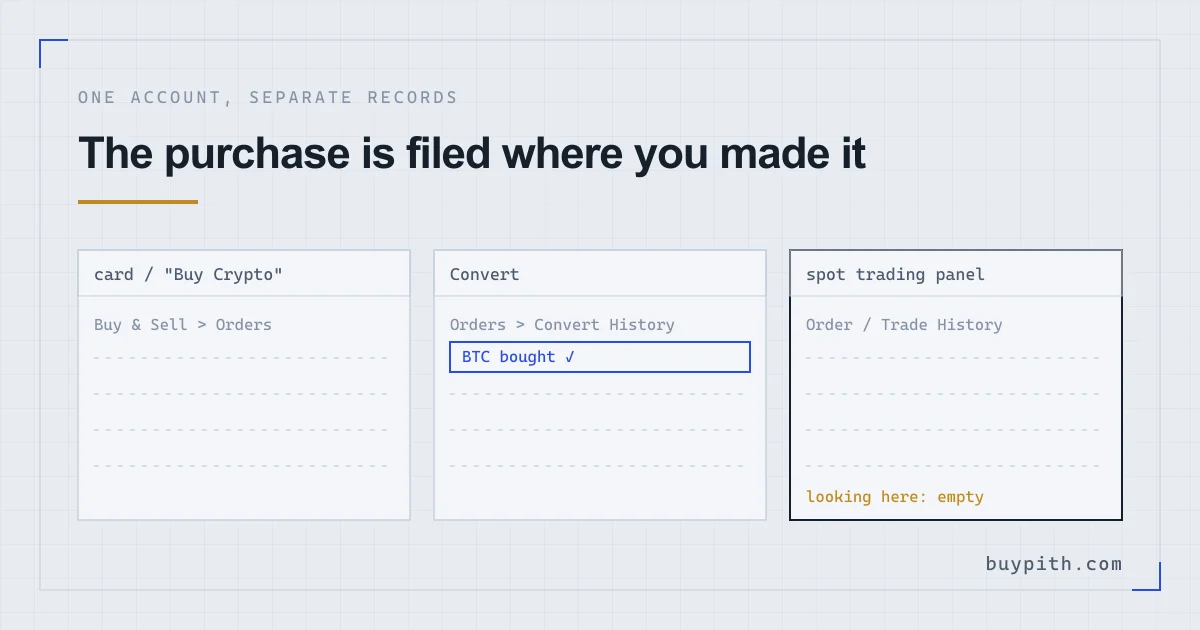
An empty spot Order History is a reason to check the purchase route first. On Binance, card purchases, Convert and spot trades keep separate records.
Work out which screen you pressed Buy on, open the record that belongs to that screen, and read its status. Only after that is it worth wondering whether something went wrong.
Which screen did you buy on?
The quickest way to tell is to remember what you typed into. Each route asks for something different, and that is enough to identify it.
- You typed card details or picked a saved card, on a page reached through Buy Crypto. That is a card purchase, and Binance files it as a fiat order.
- You chose a coin to pay with and a coin to receive, were shown a quoted rate and confirmed it. That is Convert.
- You saw a chart, an order book and a choice of Limit or Market, then pressed Buy BTC (or whichever coin). That is a spot order.
- You picked a seller from a list and paid them directly, with a chat window open. That is P2P, which has its own order page and its own rules, and sits outside this guide.
A first purchase can easily go through one of the first two routes without the spot panel ever being opened, which is exactly why the spot Order History can stay empty.
Card purchase not in order history? Look under Buy & Sell, then Orders
Binance’s guide to buying with a card on the website gives three ways into the same list. From the main page, click [Buy & Sell] and then [Orders]. Or go through [Fiat Order] and choose [Buy]. Or open [History] and pick [Fiat Order]. Menu labels shift between versions of the site; the word to look for is “fiat”, because that is how Binance classes anything paid for with ordinary money.
The status column is the useful part. A card order marked Failed has a small [i] button under [Unable to Process]; clicking it shows the reason Binance recorded. If your card was charged for an order that failed, the same help page says the amount is refunded to the card and that the refund may take a few days to show on your statement. Card declined when buying crypto goes through the reasons one by one.
A completed card order should have put coins in your account. The help page’s own instruction for checking is to hover over the wallet icon and open [Overview]. If the order says it completed and the balance there shows nothing, that mismatch is the thing to take to support, with the order details from this list.
Where Convert trades go: Orders, then Convert History
In Convert’s Instant mode, you receive a quote and accept it before it expires. The conversion happens outside the spot order book, so no spot order is created. Its records live under [Orders] → [Convert History], according to the Binance Convert FAQ (updated April 2026).
Two lines on that page explain most Convert surprises:
- Where the money came from. You choose which wallets can fund the conversion. If you select multiple wallets, Binance deducts from Spot Wallet first, then Funding Wallet, then Earn Flexible Savings, moving to the next selected wallet if needed. Check that selection before deciding that the wrong balance was used.
- When it lands. The FAQ says settlement typically happens immediately or within a few hours of confirming. A Convert record with the coins not yet showing is worth a short wait before anything else.
Convert also has a Limit mode, where you set a rate and wait. That kind of order may never execute, even if the price briefly touches your target, which the same FAQ states directly. If you used Limit mode and nothing arrived, check the status in Convert History before assuming the coins are missing.
Spot orders: Open Orders, Order History and Trade History
If you did use the spot panel, the trading page keeps its records under the chart. Binance’s help page on market and limit orders names the tabs and how to reach them (checked October 2026):
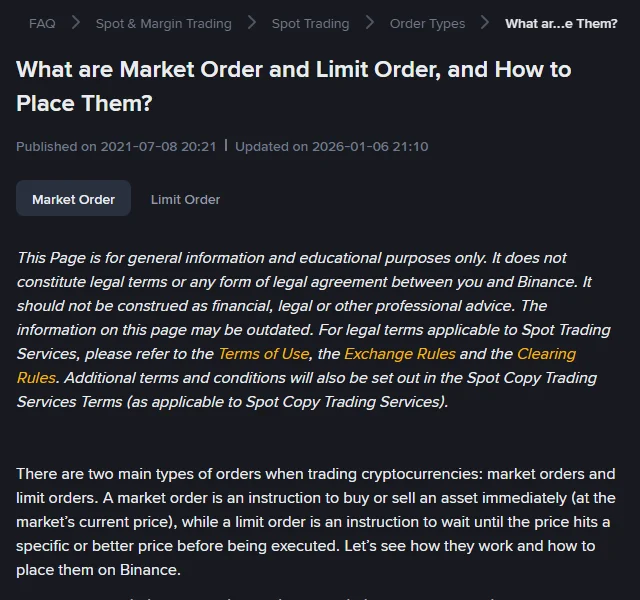
- [Open Orders] holds anything placed but not yet completely filled. A limit order waiting for its price sits here, and so does the unfilled part of a partly filled one. The bin icon next to it cancels it on the website; in the app the button is [Cancel].
- [Order History] shows filled and unfilled orders for the selected period, as Binance explains in its guide to spot trading activity. Read the order status and filled quantity; an entry here is not proof of a completed purchase.
- [Trade History] shows the fills themselves. The help page puts it plainly: you can check your filled orders under [Trade History].
On the app, Binance’s route is [Trade] → [Spot] for open orders, and the [Order Records] icon, then [Trade History], for filled ones.
An order can be open after a partial fill. Check its filled quantity and the corresponding Trade History entries. If the filled quantity is zero, none of it has traded. Canceling the open remainder does not undo any fills that already happened. An unfilled limit order explains what it is waiting for.
A single order can match several sellers. Check whether the history view groups those matches before comparing row counts. Use the filled quantity, execution prices and fee in the order or trade details to understand the purchase. If those prices differ from what you expected, your order filled at a different price takes that question on separately.
Found the order, but the coins are not in your balance
Once you have the record, its status narrows things down.
- Completed or Filled, coins not where you looked. Check the other wallets in Overview first. A purchase can credit one wallet while you are staring at another; where do my coins go covers how the wallets are split.
- Completed, slightly fewer coins than the preview. For a spot trade, a fee charged in the purchased coin reduces the amount received. A fee paid in BNB is deducted separately. Check the fee and its currency in Trade History; for a card purchase, compare the Fiat Order details instead.
- A Convert you only just confirmed. The Convert FAQ says settlement can take a few hours. Check the status and selected destination wallet; keep the order number if you need support.
- Failed, but the bank shows a charge. That is the refund case above. The order record is what to quote if you need to chase it with your bank or with Binance.
Before you contact support
Write down what the record shows: the order number, the date and time, the amount and the status, plus which of the lists above it came from. A support agent will ask for the same things.
Contact support from inside the Binance app or website only. Treat strangers who answer public posts about a missing order, offering to recover it, as a scam until proven otherwise; no genuine agent needs your password, your 2FA codes or remote access to your phone.
Questions people actually ask
Why is my spot Order History empty after buying with a card?
Card purchases are recorded as fiat orders, not spot orders. On the Binance website they are listed under Buy & Sell, then Orders, or under History, then Fiat Order.
Where do I see a Convert I made?
Under Orders, then Convert History. Binance's Convert FAQ says settlement usually happens immediately or within a few hours of confirming.
My order is in Open Orders. Did the purchase go through?
It has not completely filled. Some of it may already have traded: check the filled quantity and Trade History. The bin icon on the website or Cancel in the app cancels only the remaining open amount, not completed fills.