Same seven steps, smaller screen
Buying your first bitcoin on a phone, stage by stage
You can do this whole thing on a phone without opening a laptop. The app version is not a cut-down edition — but three things are placed differently, and one of them is the fee breakdown.
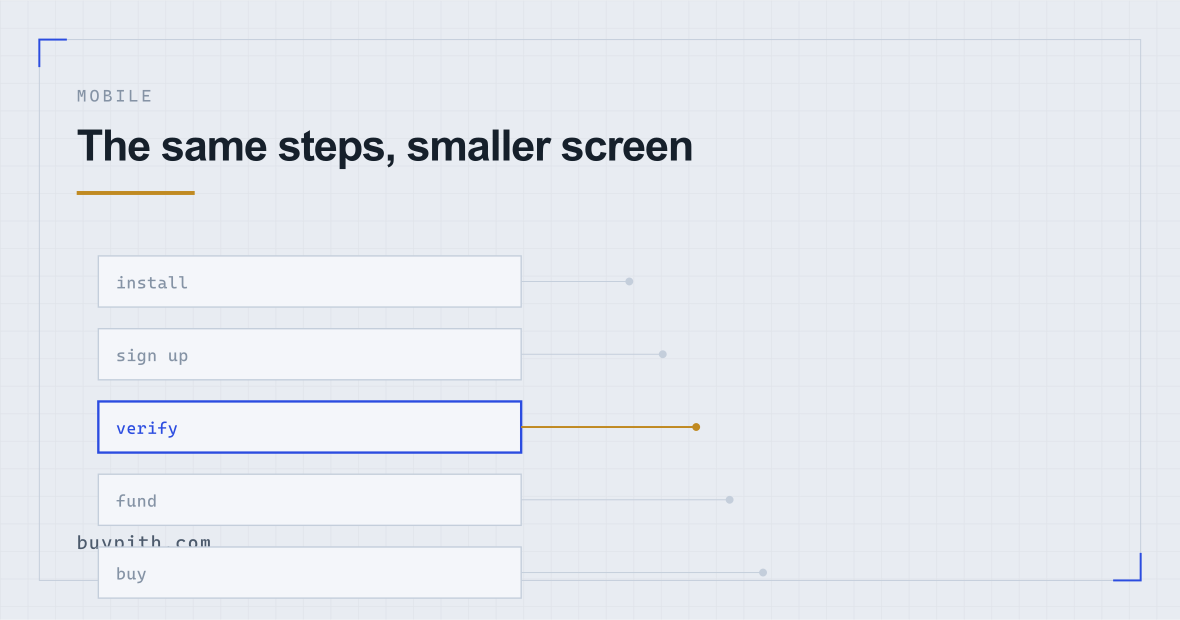
- App storeInstall from the official listing only. Check the developer name, not just the icon.
- Sign upEmail or phone, password, and the referral field hidden behind an "optional" link.
- VerifyUse a supported camera and follow the identity-check prompts.
- SecureAuthenticator app, on the same device or ideally another one.
- FundCompare card processing costs with the fee and expected crediting time for each available bank-transfer option.
- BuyExpand the fee breakdown before confirming. It is collapsed by default.
You can register, verify, fund and buy in a supported phone app. Camera verification can also work on a computer with a webcam. Choose a supported camera you can use in good light. What changes between devices is the layout, so find the final cost and quantity before confirming.
Installing the app without installing the wrong one
Fake exchange apps can appear in app stores. They can look correct, use the right logo, and take your credentials the moment you type them.
Two habits handle it:
- Check the developer name and the review count, not the icon. Compare the developer details with the store listing reached from the exchange's official website. Do not rely on a familiar name or a large rating count alone; if the details differ, stop and check.
- Reach the store listing from the exchange's own website, typed into the browser yourself, rather than from a search result inside the app store or a link someone sent you.
Never install an exchange app from a link in a message, an email, or a QR code someone showed you, and never from a downloaded file outside the official store. A file installed from outside the store skips the store's own listing review. Store availability alone is not proof either: Binance explains how fake apps imitate legitimate listings and developer information (reviewed October 2026).
Sign-up on a small screen
Identical fields to the desktop version, stacked. Email or phone, password, a code sent to whichever you used.
The optional referral field can be collapsed on a small screen; expand it if you want to use a code. Eligible Binance accounts may bind later: the registration guide explains where to check the conditions.
Use a password manager rather than inventing something you can type comfortably with thumbs. Thumb-friendly passwords are short passwords.
Verification: document and camera checks
The identity check can ask for a document image and a live face check. Follow the camera prompts on your supported device. Binance supports either a smartphone or a computer webcam for face verification; its personal-account guide also explains that document-upload options depend on the country (both reviewed October 2026).
What passes:
- Physical document, flat on a dark, matte surface, all four corners inside the frame.
- Even indirect light. Not direct sun, not overhead spotlights that bounce off the laminate.
- Face uncovered — no hat, no glasses, hair off the face — against a plain wall.
- Follow the on-screen movement prompts. Keep your whole face visible and centered in the frame, with your eyes open.
When live capture is requested, use the physical document, not its image on another screen. If a file upload is offered, follow the stated format and quality requirements; an upload is not automatically invalid. Use enough light for a clear image. The failure guide covers rejection messages.
If the app asks for camera permission and you said no once: it will not ask again. You have to grant it in your phone's system settings, which is not obvious from inside the app, and it looks like the verification step is broken when it is not.
Two-factor on the same device
Slight awkwardness here: if the authenticator app and the exchange app are on one phone, losing that phone loses both at once.
It still beats SMS codes, which can be redirected by moving your number to a new SIM. So: authenticator app rather than text messages, and then write the backup key on paper when it is displayed during setup. Do not screenshot it — that puts your recovery key in your photo library, which syncs to wherever your photos sync to.
If you have an old phone or a tablet in a drawer, putting the authenticator there instead is a genuinely better arrangement and costs nothing.
Funding, and the tap that costs the most
Compare the available funding options before choosing a saved card. A card can add processing costs; a bank transfer may be quick or take working days. Read the fee, quoted price and estimated arrival time for each option. The comparison explains what to check.
If a card payment is declined, read the message and ask the bank whether it restricted the payment. The bank, exchange or processor may be responsible. Repeated attempts do not remove a policy block, which may also cover bank transfers.
The buy screen, and the number that is collapsed by default
Enter an amount in your own currency; the app shows the quantity of bitcoin you will receive. Then, before confirming, find the fee breakdown. Where it sits varies by app; look for a small chevron, a “details” toggle, or a line of grey text on the confirmation sheet, and do not confirm until you have found it.
Expand it. You are looking for three things:
- The quantity you actually receive, after costs — not the amount you typed.
- Any stated fee, as a line item.
- The rate you are being given, which on the simplified widget is generally not the mid-market rate you saw quoted elsewhere. The difference is the spread, and it is a real cost even though it never appears as a fee.
Which costs are visible and which are inside the price is the page to read once, before your second purchase.
The amount field. A stray tap adds a zero, and the confirm sheet on a small screen shows it in a smaller font than you would like. Read the number, not the shape of the number.
The confirm button. It sits where thumbs rest. There is no undo — a filled order cannot be cancelled, and there is nobody to dispute it with.
Afterwards: two settings and one note
Turn on login and withdrawal notifications so an unexpected one reaches you immediately. Turn off price alerts unless you have a specific reason for one — a notification saying an asset moved is not information, it is a prompt to open the app, which is what it was designed to be.
Then write down what you did: date, amount, quantity received, fee, platform. Typing it on a phone is fiddly, but it is still worth doing: it is on the post-purchase list because rebuilding the figures later, for example when a tax return asks for them, is much harder.
Questions before you start
Is buying on the app more expensive than on the website?
The app and the website can offer the same two products — a simplified buy widget and a full trading screen. What can differ is prominence: the app may put the simplified widget first, and that widget can cost more once the spread is counted. Compare the final quantity on both screens. The device is not the expensive part; the interface you end up in is.
Can I complete identity verification without a phone?
Yes, where the platform offers a supported desktop flow. Binance says face verification can be completed using a smartphone or a computer with a webcam. Check camera access and lighting, then follow the prompts on the device you use.
Should my authenticator app be on the same phone as the exchange app?
It is safer on a second device, because losing one phone otherwise loses both factors at once. If one phone is all you have, that is still much better than SMS codes — just make sure the authenticator backup key is written down somewhere offline.